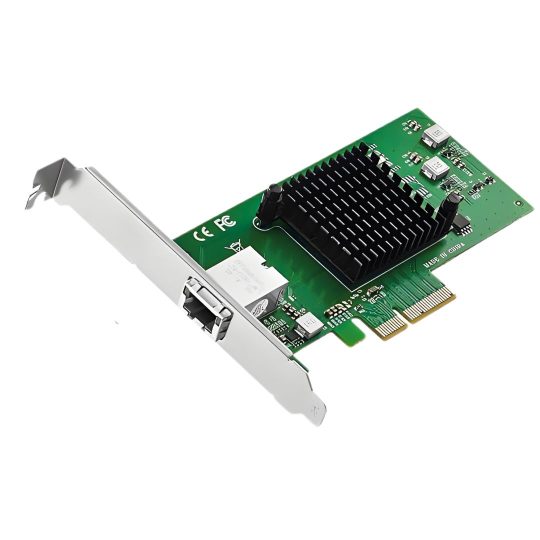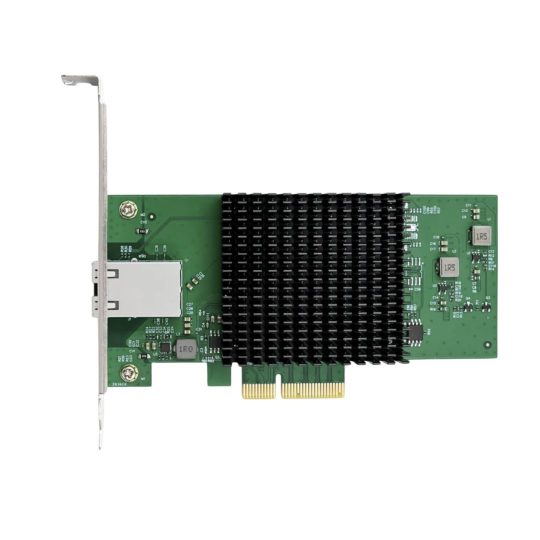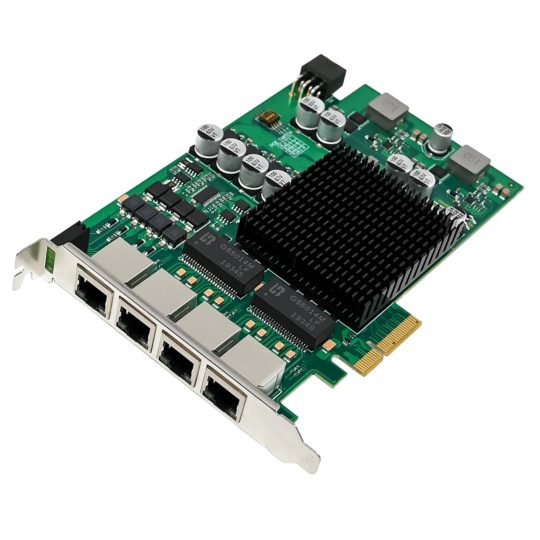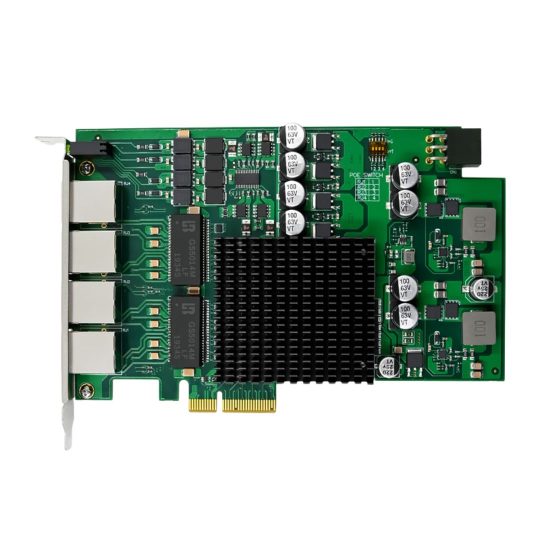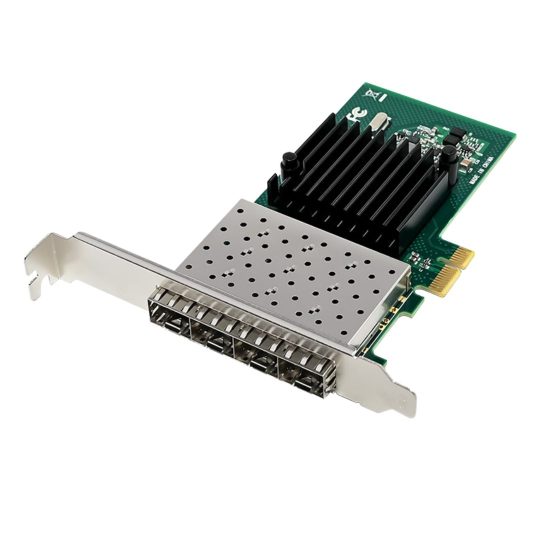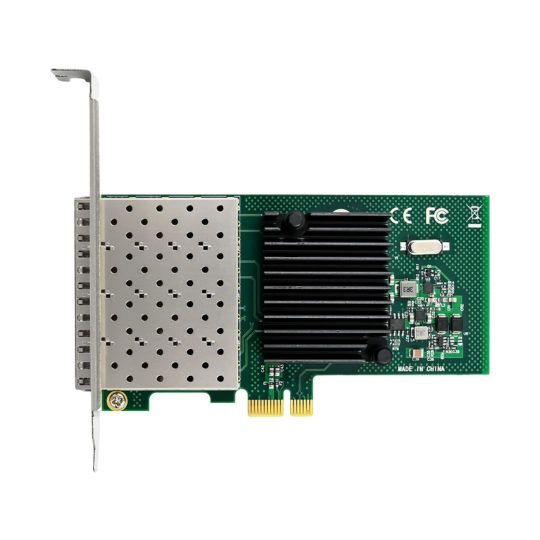
Choose the right PCI Express card for your setup
Whether you need faster networking, additional USB ports or connections for specialist equipment, choosing the right expansion card starts with understanding your requirements.
Use this guide to explore your options and check compatibility before buying.
1. What do you want to add or upgrade?
| Your requirement | Explore |
|---|---|
| Add or replace an Ethernet connection | Single-port network cards |
| Upgrade to a faster wired network | 2.5G, 5G or 10G network cards |
| Add multiple network connections | Dual-port and quad-port network cards |
| Connect to high-speed server infrastructure | 10G, 25G, 40G and 100G network cards |
| Add USB-A or USB-C connections | USB & TypeC expansion cards |
| Connect RS232 equipment | Serial cards |
| Connect parallel-port equipment | Parallel cards |
| Add both serial and parallel connections | Serial + parallel combo cards |
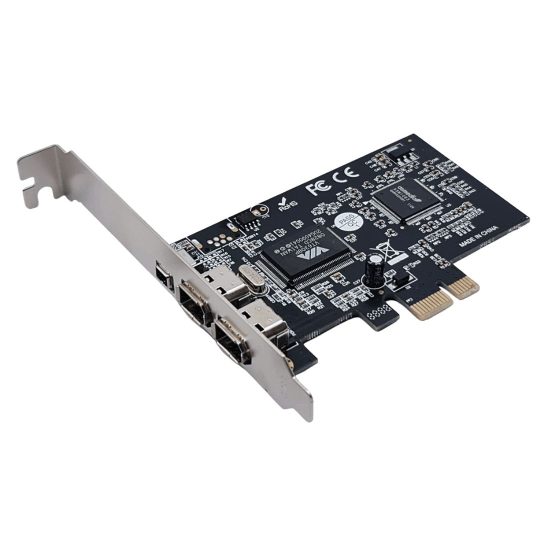
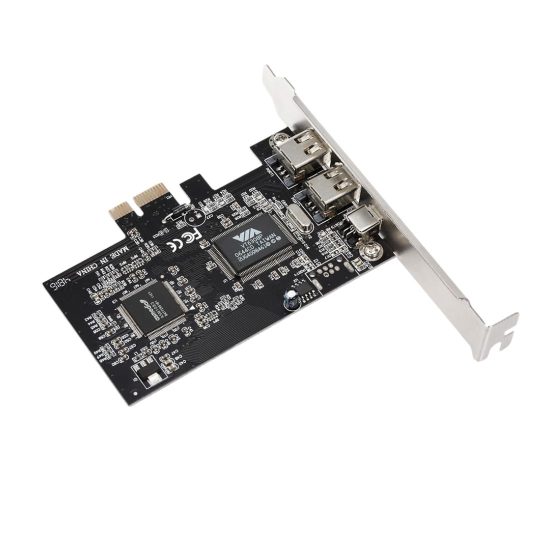
| Connect FireWire equipment | FireWire cards |
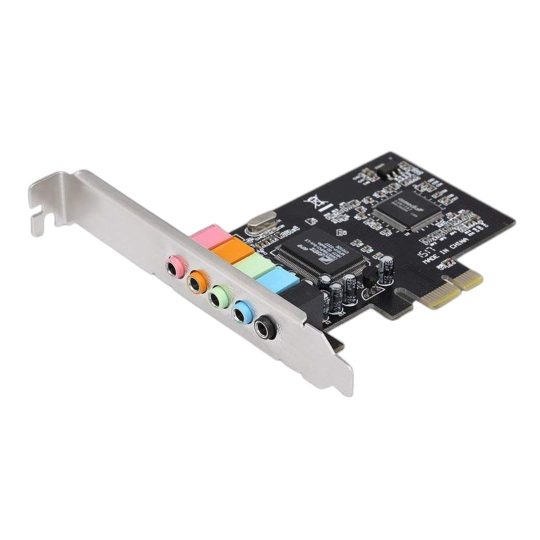
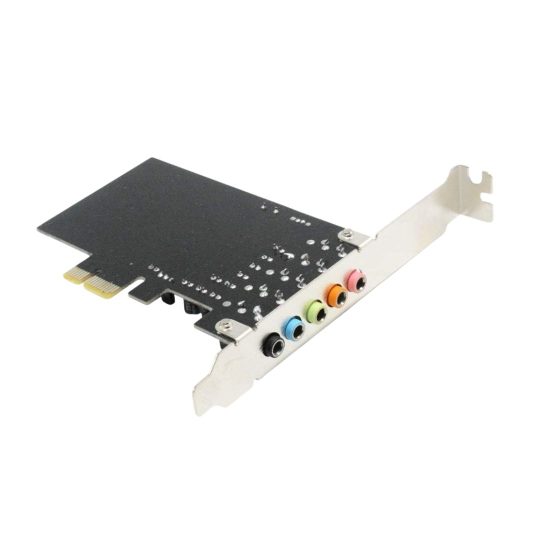
| Add audio connections | Sound cards |
| Connect compatible PoE cameras | PoE network cards |
2. Check your computer before choosing a card
Available PCI Express slot
Check your motherboard for an available PCIe slot and compare it with the card’s requirements. Common slot sizes include x1, x4, x8 and x16.
Check both the physical slot size and its supported lane configuration. A long slot may have fewer electrical lanes than its appearance suggests. Your motherboard manual provides this information.
Cabinet size and clearance
Check whether your computer requires a full-height or low-profile bracket. Confirm that there is enough space for the card and that nearby components will not obstruct installation or airflow.
Check the product’s package contents to see which brackets are included.
Operating system and drivers
Confirm driver availability for your exact operating system and version. For servers, Linux systems, virtualisation platforms and firewall installations, check compatibility with the specific model before ordering.
Power requirements
Some cards require an additional power connection. Check the product specifications and confirm that your power supply has the necessary connector.
3. Choosing a network card
Select the right network speed
Choose a card that suits your network equipment and workload.
| Speed range | Situations to consider |
|---|---|
| 1GbE | Everyday wired networking and adding an Ethernet port |
| 2.5GbE / 5GbE | Upgrading a compatible network for faster local transfers |
| 10GbE | Larger file transfers, NAS connections and workstation or server networking |
| 25GbE / 40GbE / 100GbE | High-bandwidth server and infrastructure deployments |
A faster card alone does not guarantee faster transfers. The switch, connected device, cabling, storage and computer must also support the intended performance.
Choose the connection type
RJ45: Choose this when connecting through compatible copper Ethernet cabling. Check the cable requirements for your intended speed and distance.
SFP, SFP+, SFP28, QSFP+ or QSFP28: Check the exact port type and supported transceivers or DAC cables. Confirm compatibility at both ends of the connection and whether the required accessories are included.
Decide how many ports you need
Choose a single-port card for one connection. Consider dual-port or quad-port cards when you need additional network interfaces.
Features such as link aggregation, failover and virtualisation depend on the card, drivers, operating system and network configuration. Check support for your intended application.
Compare the exact model
STECH offers network cards based on different controller families. Compare models by speed, connection type, port count, PCIe requirements, driver support and the features you need.
For PoE applications, also check the supported PoE standard, available power budget, external power requirements and camera compatibility.
4. Choosing a USB or TypeC expansion card
Start with the devices you want to connect, then check:
- Connector type: USB-A, USB-C or a combination.
- Port count: Enough connections for your intended setup.
- Data speed: Match the card’s specifications with your devices and cables.
- PCIe requirements: Confirm the required slot and available bandwidth.
- Power input: Check whether an additional power connection is needed.
USB-C describes the connector shape. It does not automatically mean the port supports display output, Thunderbolt or high-power charging. Check the capabilities listed for the selected card.
When connecting several devices, also check whether ports share bandwidth.
5. Choosing an I/O card
Serial and parallel cards
Check whether your equipment requires RS232 serial, parallel LPT or both. Match the number of ports, connector type, pinout and communication requirements with your device.
Confirm compatibility with the software used to operate the equipment.
FireWire cards
Check your equipment’s FireWire standard and connector type. Confirm that you have the correct cable and that the operating system and application support the device.
Sound cards
Match the card’s audio connections and supported channel configuration with your speakers, headset or audio equipment. Check driver support for your operating system.
Before you order
Make sure you have checked:
- The correct card category and required connections.
- Available PCIe slot and bandwidth.
- Cabinet size, bracket type and clearance.
- Operating system and driver support.
- Additional power requirements.
- Required cables, modules and accessories.
- Package contents and warranty terms.
Frequently Asked Questions
Can I install these cards in a laptop?
These cards are intended for systems with suitable internal PCIe expansion slots. They are generally not direct-install upgrades for standard laptops. Check your system’s expansion options before buying.
Will a card work with every operating system?
Compatibility varies by model and operating system version. Check the selected product’s specifications and available drivers.
Are cables and modules included?
Package contents vary by product. Check the listing for included cables, brackets, transceivers and other accessories.
Will more ports automatically increase speed?
More ports provide additional connections. Performance depends on the card’s design, available bandwidth and how your devices and software use those connections.
Need help choosing?
Share your computer or motherboard model, operating system, connected equipment and intended use with our team. We can help you identify a suitable STECH card.